我们发现了什么
# 让你的 AI 代理在屏幕上画大箭头、框和文字 big-arrow-on-the-screen(bigarrow)是一个 macOS 命令行工具,同时也是一个用于 Claude Code 和 Codex 的技能,可在每个窗口顶部绘制一个箭头和一个标牌。(一圈圈打转的螺旋),20,000 名开发者 40,000 种意见,终于等来一个更大的箭头,12 年后:依然没有共识](docs/images/hero-hn.png) 真实应用 (#real-apps-real-use-ca
- 来源:GitHub(发现于 2026-10-10)
- 证据等级:D · 发现产品或需求信号,暂未获得可核验的商业证据。
- 商业模式:待核验
- 主题:独立产品
- 初筛评分:16.6/100 · 收录 1 次
证据,比故事更重要。
规则清洗与初筛,未经人工商业核验。原文语境、实际客户和付费情况仍需自行验证。
引用与数字披露
来源类型(原作者自述/第三方测算/媒体转引)需采集端标注,本版尚未落字段。
- 作者
- 未标注
- 抓取日期
- 来源类型
- 未标注
- 币种
- 未标注
- 口径
- 未标注
- 披露主体
- 未标注
- 披露日期
- 未标注
中文辅助译文(节选·触顶截断)
让你的 AI 智能体在屏幕上画出大箭头、方框和文字
big-arrow-on-the-screen(bigarrow)是一款 macOS 命令行工具,同时也是 Claude Code 和 Codex 的技能包,能在每个窗口上方绘制一个箭头和一个标识牌。点击操作可以直接穿透,键盘焦点保持不变,箭头会自动消失。MIT 许可证。
 
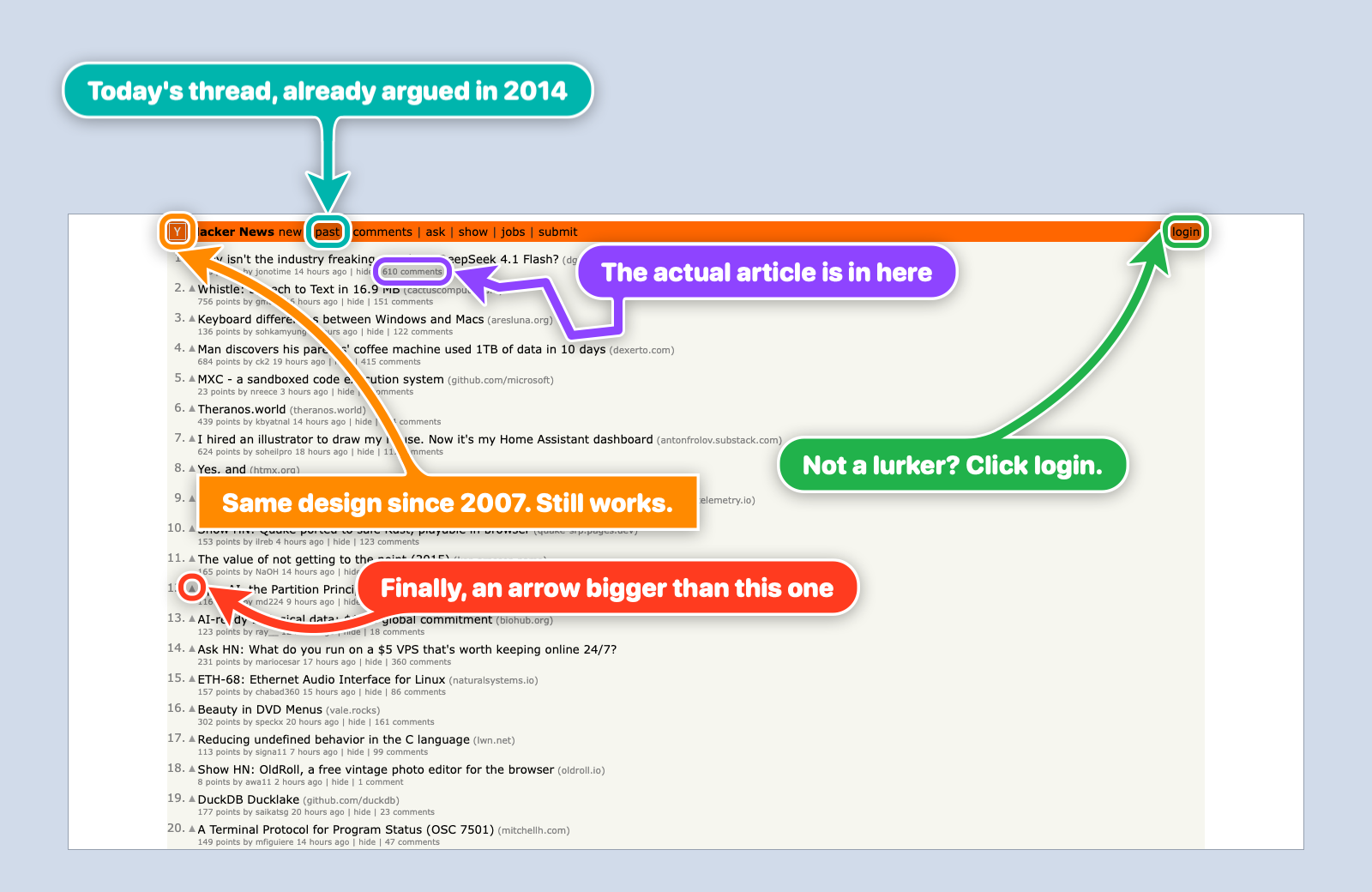
图注:真实的 macOS 桌面,Chrome 中打开的 2014-06-10 Hacker News 页面,9 个不同颜色的大箭头从各方向指向页面各处——配文讽刺了 Hacker News 12 年来在点击展开评论的交互上始终没有共识。
真实应用 · 复制与粘贴 · 它到底是干嘛的? · 安装 · 命令 · 外观 · 创意箭头 · Star 来自 · 常见问题 · 我们怎么知道它有效 · 面向智能体 · 计划 · 先例 · 许可证
你的 AI 智能体能重构 monorepo、写迁移脚本、解释 monad,但当它需要你点击一个按钮时,它会在你没在看的终端里打印 "please click Allow in the dialog"。
bigarrow给它一根手指。
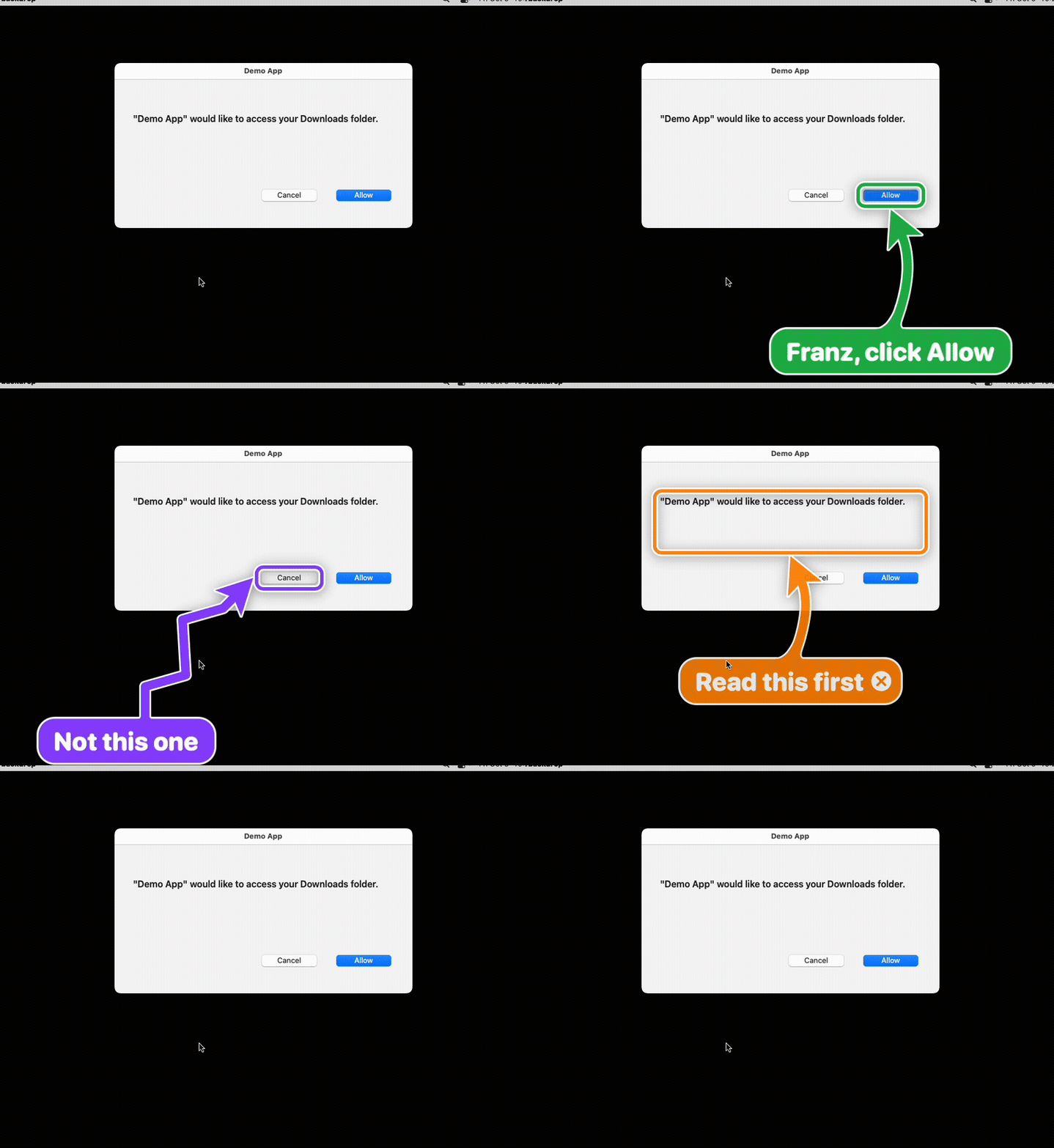
图注:bigarrow 箭头指向 macOS 对话框中「Allow」按钮的演示动图。
bigarrow point --element "Allow" --app "System Settings" --text "Franz, click Allow: Ghostty may control your Mac"一个透明的窗口覆盖在所有内容之上,跨所有显示器和所有 Space。绘制过程完全不需要任何 macOS 权限。一个 Swift 二进制文件:无守护进程、无菜单栏图标、无账号、无遥测,并且我们确认了两次,里面没有任何 AI。它就是一个箭头。
真实应用,真实用例
真实 Mac(macOS 13)上的真实应用,真实的 bigarrow,由 scripts/real-scenes.sh 编排。
macOS 桌面与 Dock:告别「点击壁纸就显示桌面」
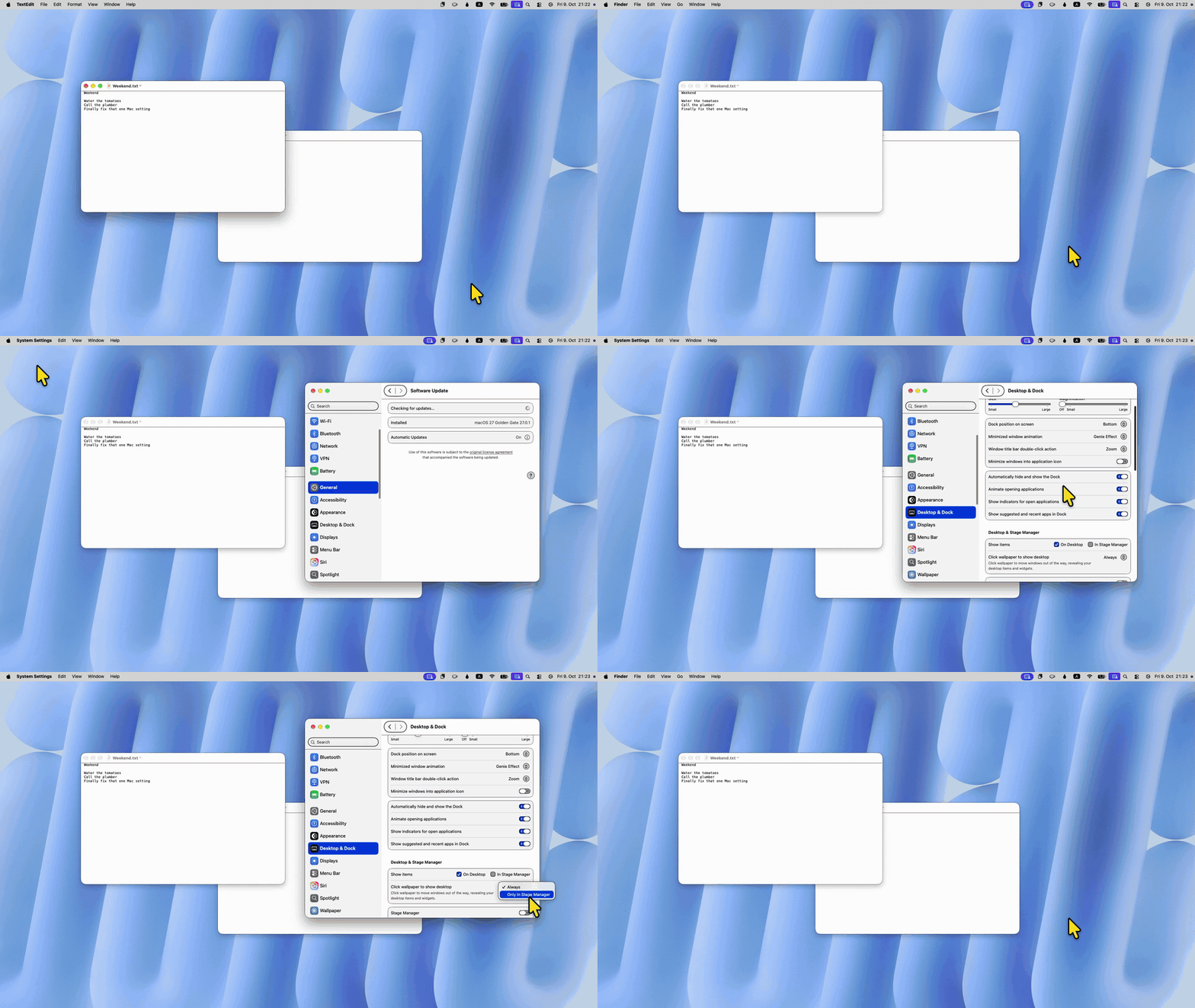
图注:演示如何通过六步关闭 macOS Sonoma 14 引入的「点击壁纸显示桌面」功能的动图,配文讽刺了「Only in Stage Manager」其实代表关闭。
"Mac 更新史上最烦人的改动",六个箭头就修好了(MP4)。
系统设置:授予权限
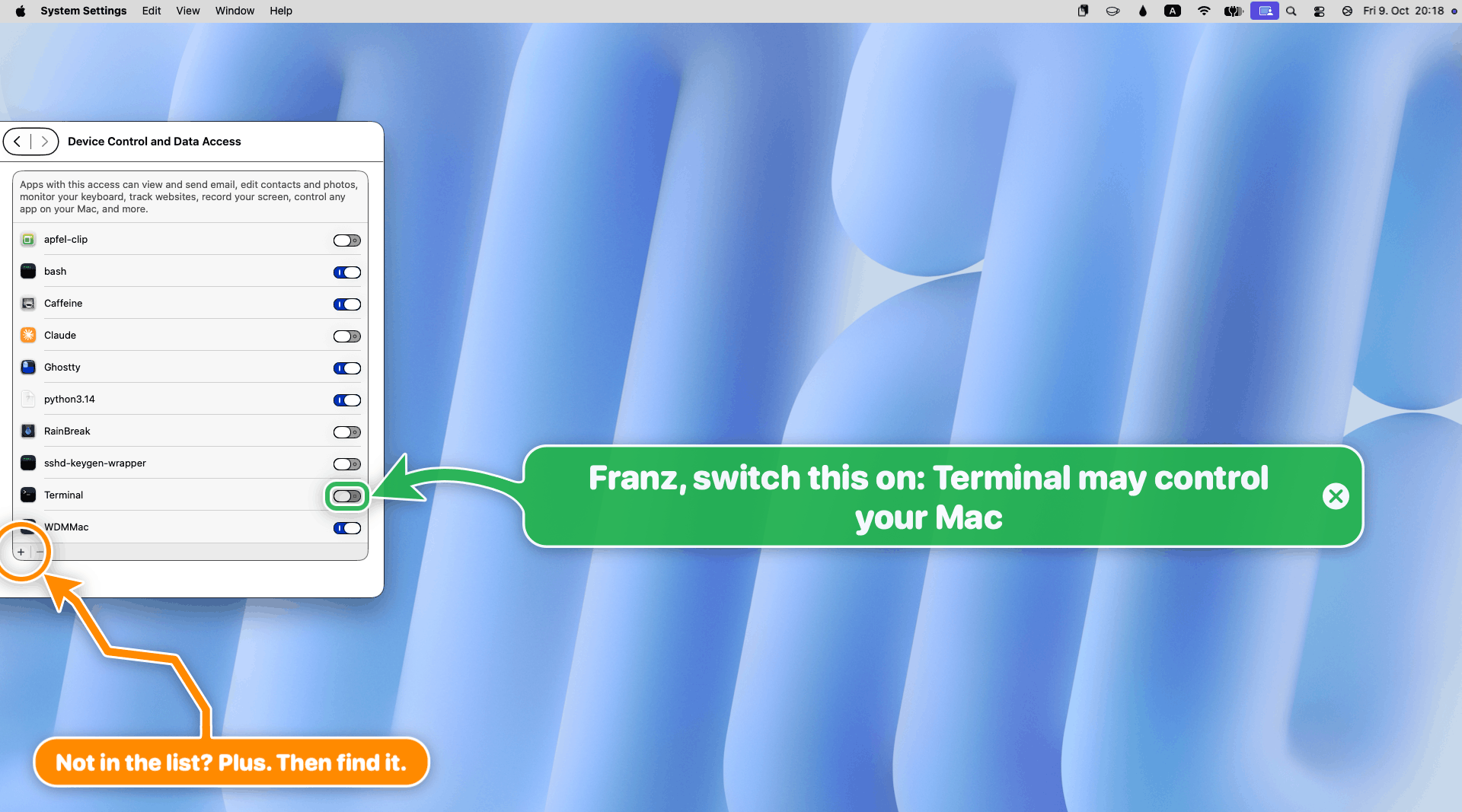
图注:系统设置中「设备控制与数据访问」页面,一个绿色箭头指向终端的开关,一个橙色锯齿环指向加号按钮。
open "x-apple.systempreferences:com.apple.preference.security?Privacy_Accessibility"
bigarrow start --element Terminal_Toggle --app "System Settings" \
--text "Franz, switch this on: Terminal may control your Mac" --from right --color green --close-button
bigarrow start --element Add --role button --app "System Settings" \
--text "Not in the list? Plus. Then find it." --from bottom-right --style ring --color orange --shape zigzag --size S
Keynote:分三步的操作指南
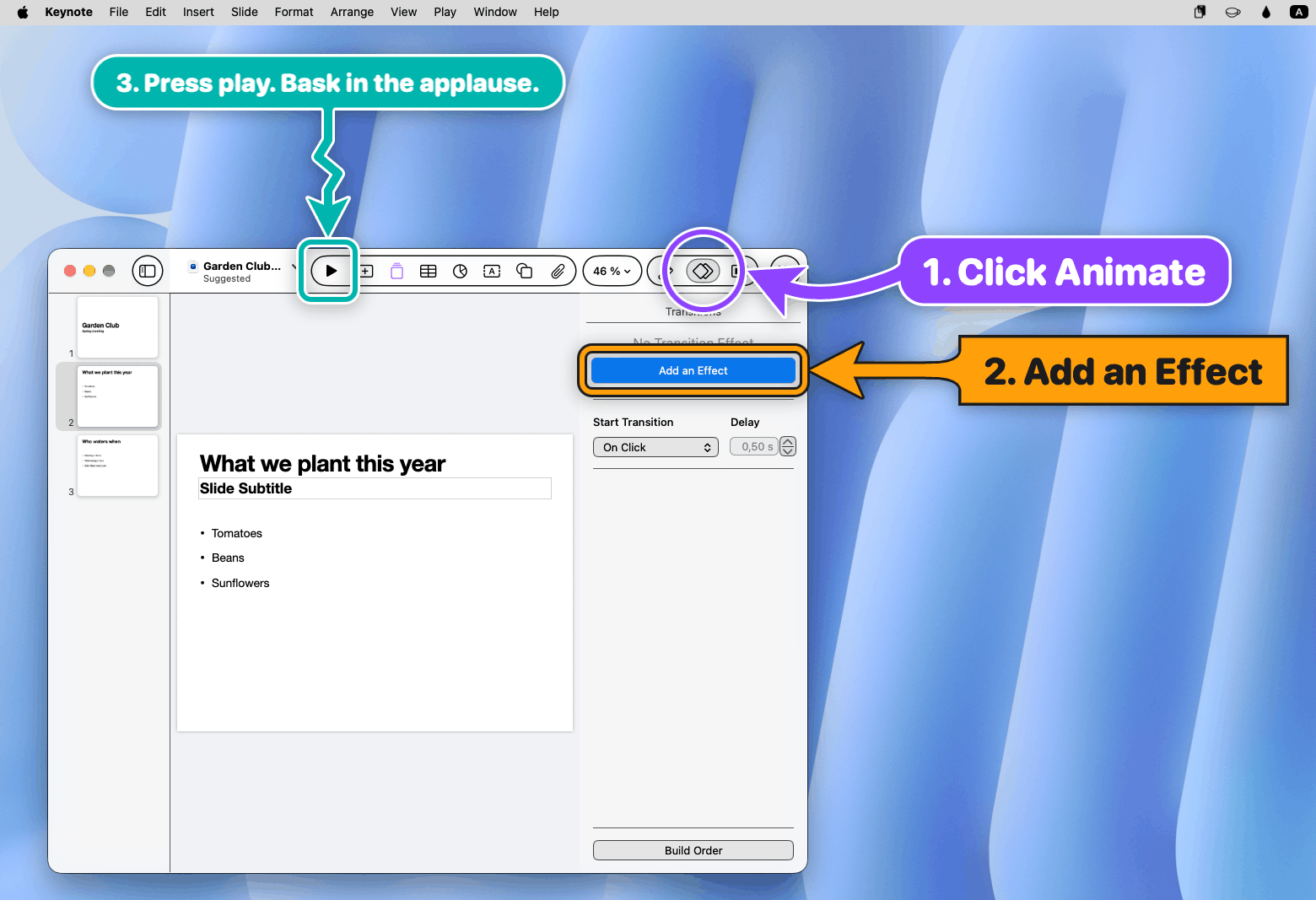
图注:Keynote 软件中演示添加动画效果的三步操作,紫色环指向 Animate,橙色方框指向 Add an Effect,青色锯齿指向 Play。
bigarrow start --element Animate --app Keynote --role radiobutton --text "1. Click Animate" --from right \
--style ring --color purple
bigarrow start --element "Add an Effect" --app Keynote --text "2. Add an Effect" --from right \
--style box --corners sharp --color "#FF9F0A" --shape straight
bigarrow start --element Play --app Keynote --role button --text "3. Press play. Bask in the applause." \
--from top --color teal --shape zigzag --size S
打印对话框:帮妈妈保存 PDF
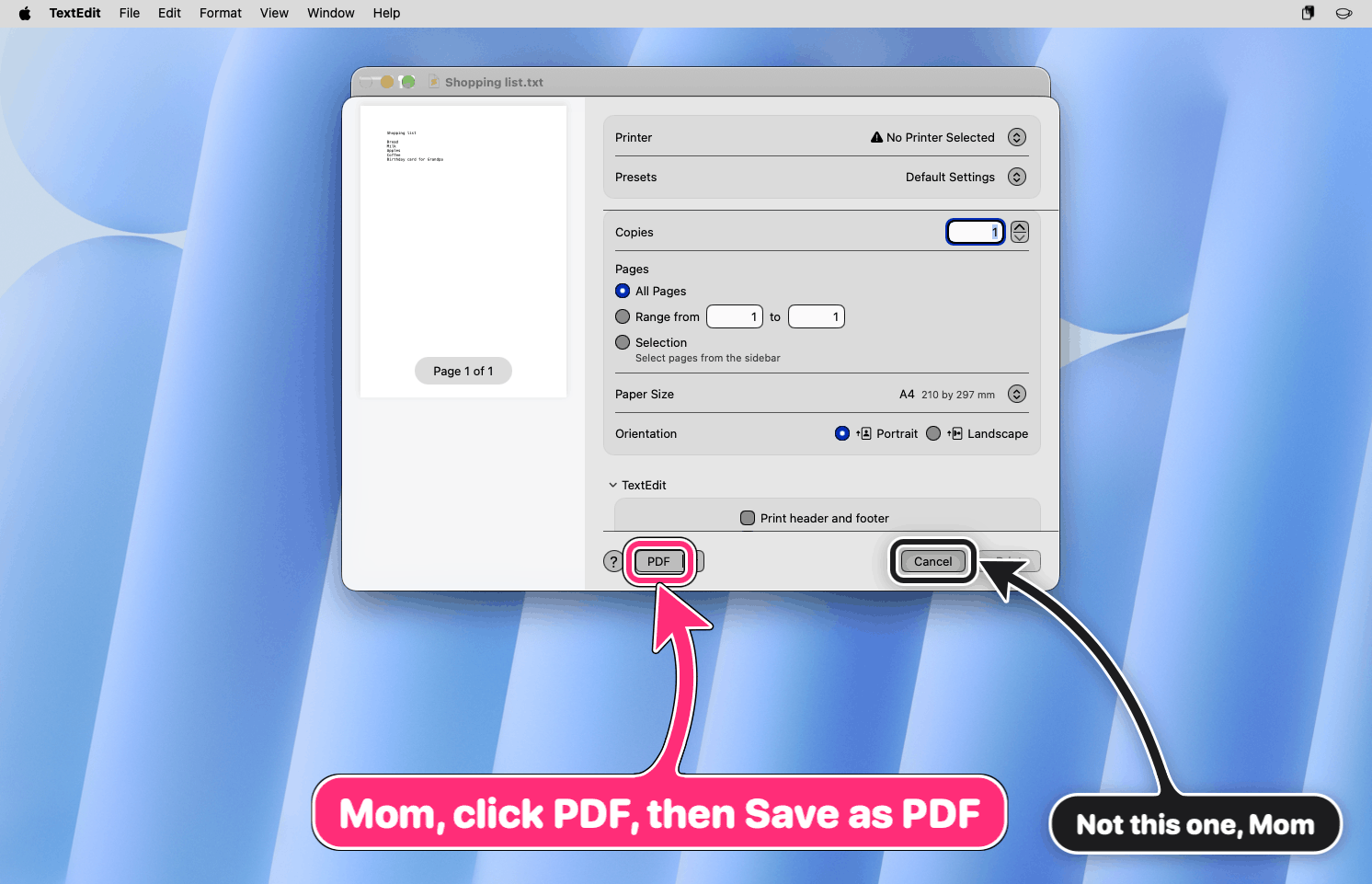
图注:TextEdit 打印对话框中粉色箭头指向 PDF 下拉菜单,小黑色箭头指向 Cancel 按钮以提醒别点错。
bigarrow start --element PDF --role button --app TextEdit \
--text "Mom, click PDF, then Save as PDF" --from bottom --color pink --border white-black
bigarrow start --element Cancel --role button --app TextEdit \
--text "Not this one, Mom" --from bottom-right --color black --size S
Chrome:14 个标签页里正确的那个
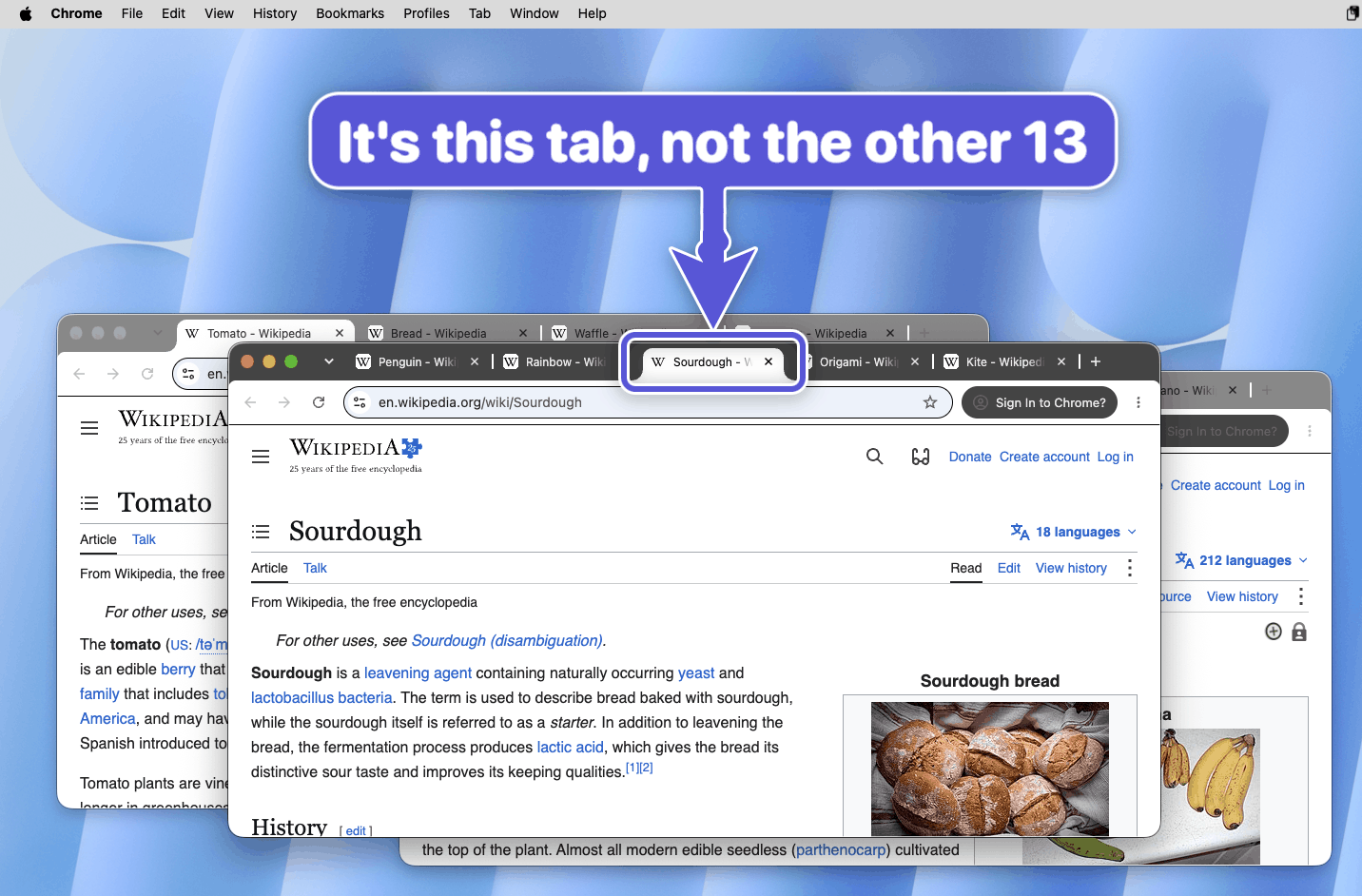
图注:Chrome 三个窗口 14 个标签页中,靛蓝色大标识牌指向正确的 Sourdough - Wikipedia 标签页。
bigarrow start --app "Google Chrome:Sourdough" --element "Sourdough - Wikipedia" --role radiobutton \
--text "It's this tab, not the other 13" --from top --shape zigzag --color "#5856D6" --size L
--app "App:tab title" 会先把窗口提到最前并选中相应标签页。
访达:「不,是另一个网格图标」
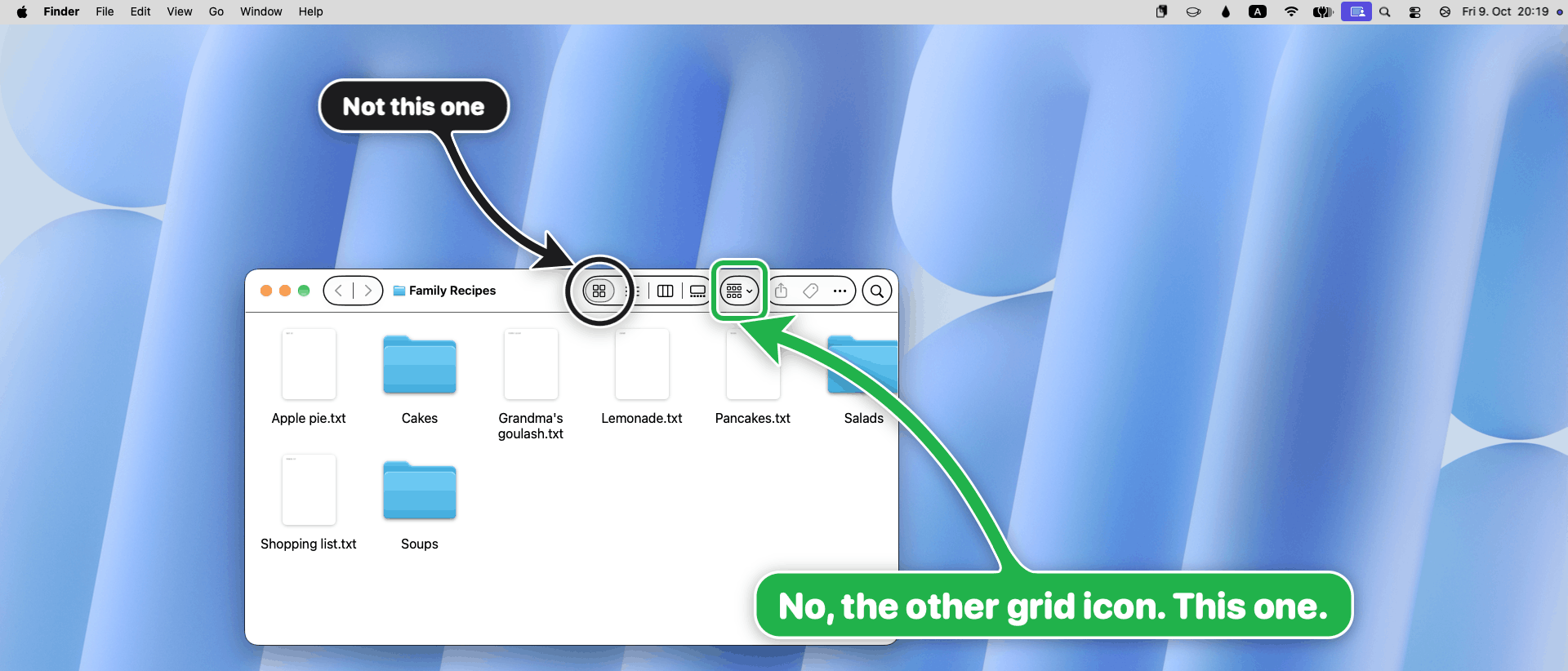
图注:访达窗口中黑色圆环指向错误的图标视图按钮,绿色方框指向正确的 Group 网格图标按钮。
bigarrow start --element "icon view" --role radiobutton --app Finder \
--text "Not this one" --from top-left --style ring --color black --size S
bigarrow start --element Group --role menubutton --app Finder \
--text "No, the other grid icon. This one." --from top --style box --color green
一份真实指南:允许屏幕录制
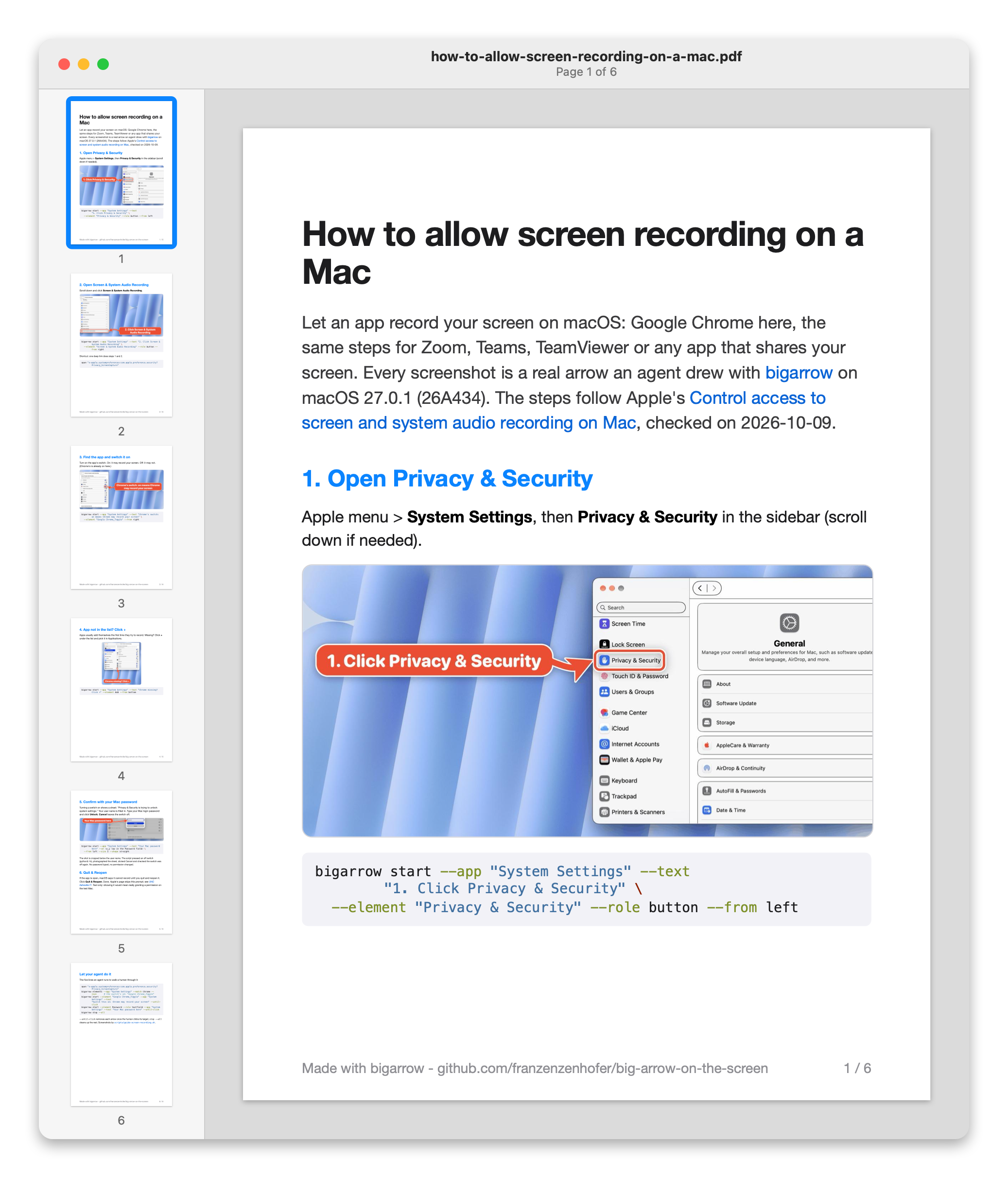
图注:6 页 PDF 指南的预览图,主题为「如何在 Mac 上允许屏幕录制」,每张截图都是智能体绘制的箭头。
整份指南是 6 页 PDF,每一张截图都是一个智能体画的箭头。下载 PDF 或在这里阅读。
复制与粘贴
标识牌中的 {{value}} 会变成一个复制按钮。点一下,就能粘贴。
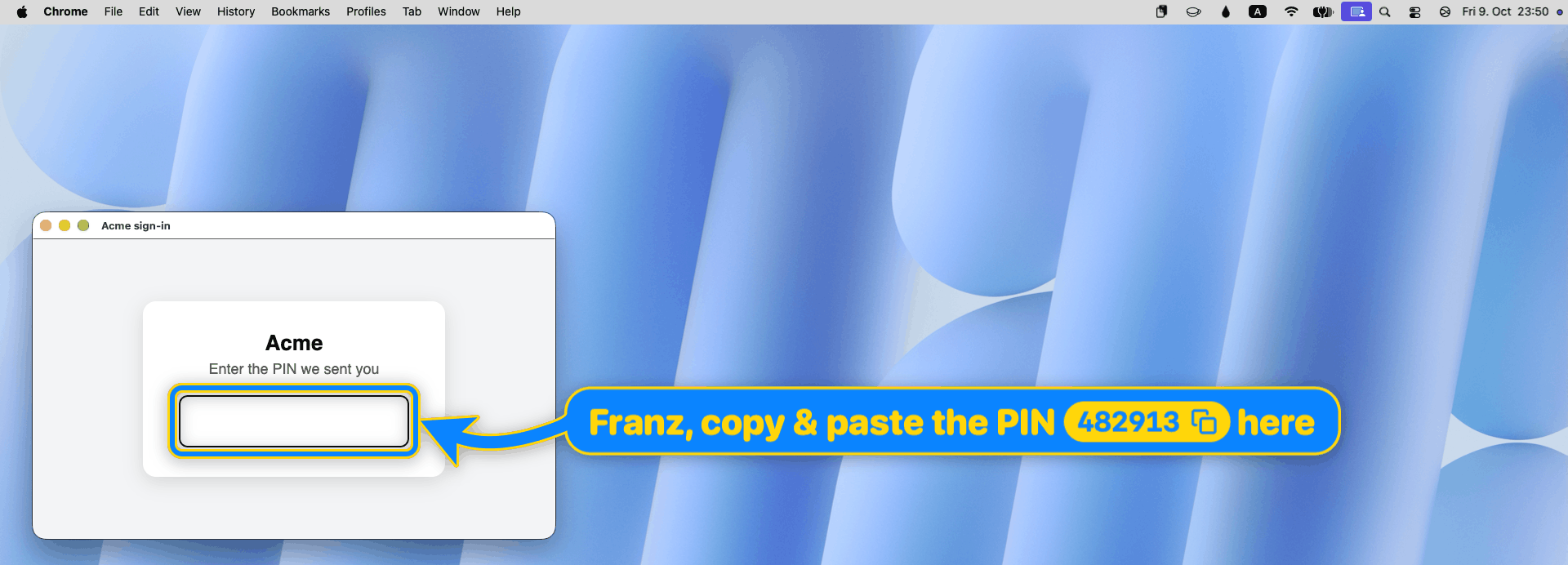
图注:登录页面上蓝色箭头指向 PIN 码输入框,旁边的黄色复制按钮显示 PIN 码 482913。
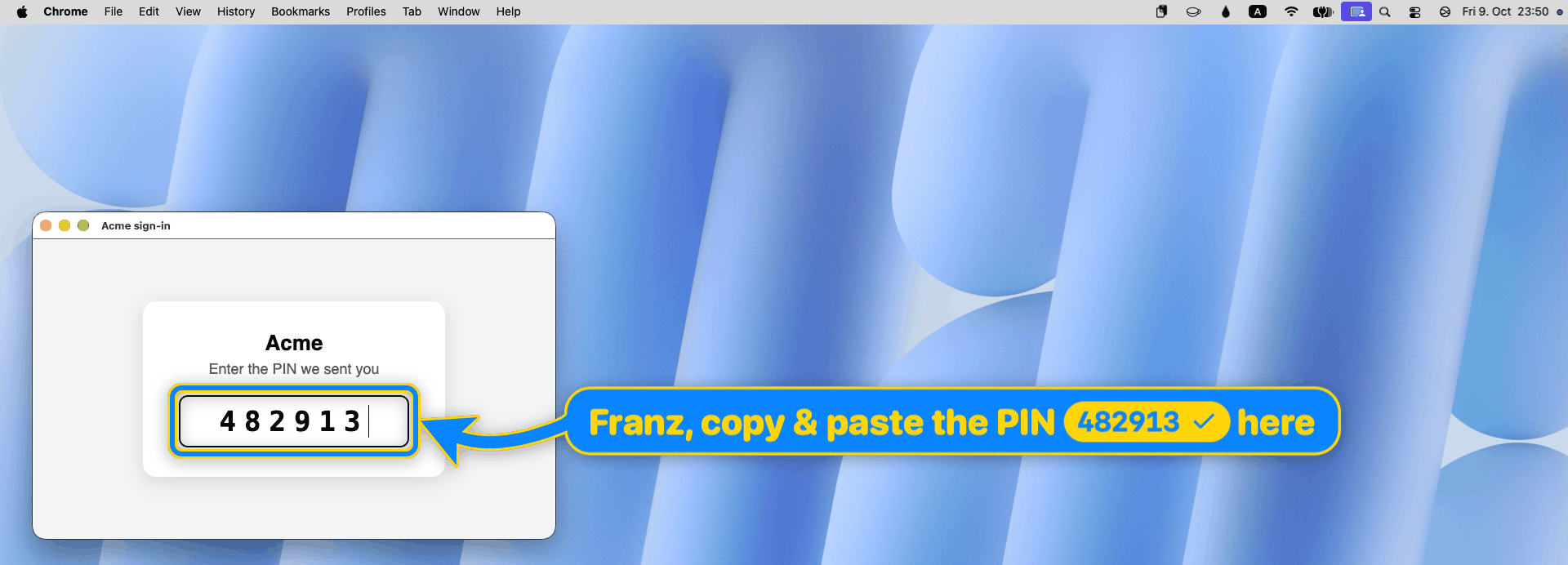
图注:点击复制按钮后,对勾图标显示已复制,PIN 码已成功粘贴到输入框。
bigarrow start --element "PIN code" --role textfield --app "Google Chrome:Acme sign-in" --from right \
--color blue --border-color yellow --text-color yellow --text "Franz, copy & paste the PIN {{482913}} here"
这工具到底是干嘛的?
这个问题问得好。箭头大约自旧石器时代就存在了。变化的是:智能体现在能在你的 Mac 上做实事,而迟早会遇到只有人类才能做的那一步,或者人类想要学习的那一步。
- "点 Allow。" 权限弹窗、OAuth 授权确认、「打开方式...?」。智能体能找到按钮,但不应该也不能去按。它可以指。
- "轮到你了。" 2FA、CAPTCHA、Passkey、付款、签名。它指,你决定,它继续。
- "粘贴这个。" 一个验证码、一个 URL、一条命令:放在标识牌上,配一个复制按钮。
- "我需要你,而你正在泡咖啡。"
--say会把标识牌的内容朗读出来。你的 Mac 会真的把你叫回桌前。 - "教教我。" 问 Blender 里某项操作怎么用,智能体依次指向各个控件。产品导览,去掉产品本身。
- 帮别人。 在父母的 Mac 上或通过屏幕共享,比起「最上面那个按钮,不,是另一个最上面」,直接指过去更有效。
- 演示和文档。 录屏时高亮,或者用
--png直接渲染为 PNG。 - 调试坐标。 指向你的 Accessibility 或 Peekaboo 坐标然后看一眼。
--dry-run --json会告诉它打算指向哪里。
它不是屏幕标注工具,不是点击机器人,不是截图工具。它从不点击、不输入、不截屏。它只是指。故意的。
安装
brew install franzenzenhofer/tap/bigarrow
bigarrow install-skill # 教 Claude Code(~/.claude/skills)和 Codex(~/.agents/skills)使用从源码安装:swift build -c release(Xcode 16+,macOS 14+),二进制文件位于 .build/release/bigarrow。二进制文件是纯 Swift;scripts/ 仅用于录制截图和运行测试。
智能体需要的三个命令
bigarrow point --element "Allow" --app "System Settings" --text "Franz, click Allow" # 按标签
bigarrow point --at 760,500 --text "Franz, click HERE" # 按坐标
bigarrow start --window "Safari:Inbox" --text "This window" && bigarrow stop # 直到停止
每个箭头都会自己消失。没人需要在智能体忘了之后清理:
| 时间限制 | --duration 10(point 默认 8 秒,start 默认 300 秒,0 = 不限时间) |
| 启动和停止 | start 立即返回;stop(或 stop --all)将其移除 |
| 智能体退出 | 箭头随绘制它的智能体进程(CLAUDE_PID 或 BIGARROW_OWNER_PID)一起结束 |
| 人类回答了 | bigarrow stop --hook 作为 Claude Code 的 UserPromptSubmit 钩子清除该会话的所有箭头 |
| 人类手动关闭 | --close-button(需主动启用) |
目标定位:--at X,Y、--rect X,Y,W,H、--mouse、--window App[:title]、--element Label --app App、--peekaboo ID --snapshot see.json。坐标为全局左上角逻辑点,与 Accessibility 和 Peekaboo 报告的一致;--display N 让坐标相对于某一显示器。
--app App[:窗口或标签页标题](或 --window)会先把对应应用、窗口或 Chrome/Safari 标签页提到最前,因为指向一个被终端挡住的窗口毫无用处。如果之后另一个应用覆盖了目标,箭头会自动隐藏,直到目标再次可见。--no-raise 可禁用此行为。bigarrow elements --app X 列出 --element 可匹配的内容;bigarrow doctor 显示权限和显示器信息。
每条命令都支持 --json。退出码:0 正常,2 参数错误,3 未找到目标,4 缺少权限。智能体喜欢退出码。人类也能忍受。
外观
它是个箭头,所以我们花了不合理的时间去打磨外观。
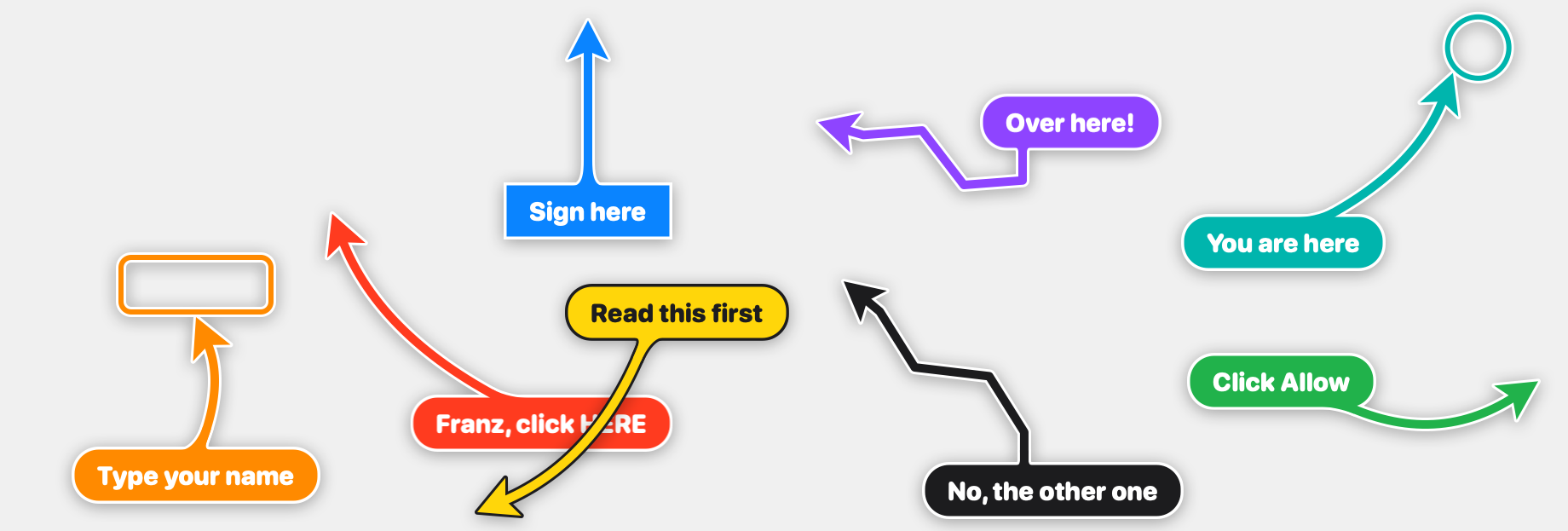
图注:八种带不同标识牌的大箭头示例:click here、sign here、over here、you are here、type your name、read this first、no the other one、click Allow。
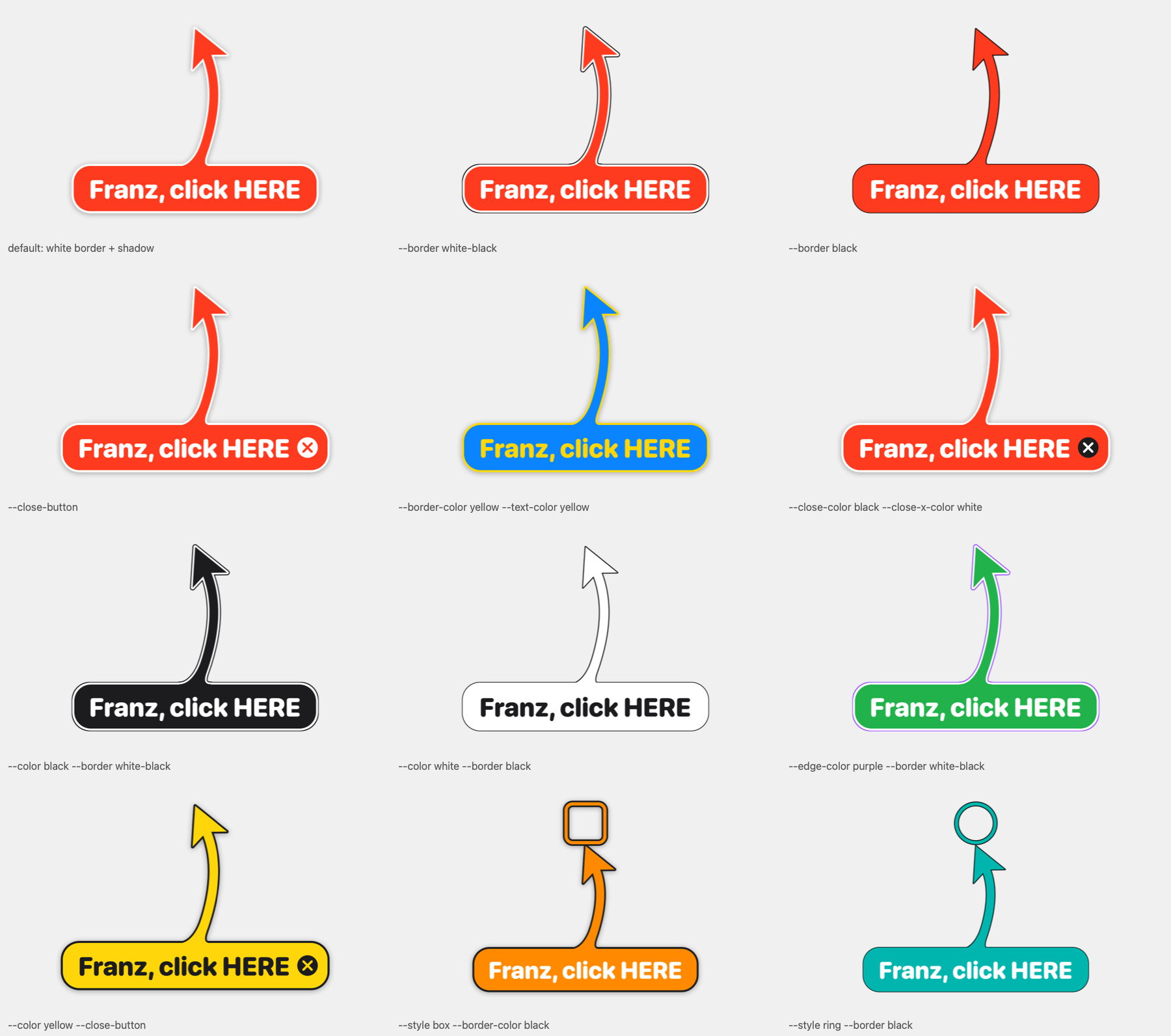
图注:所有边框样式和颜色选项对比:默认白边带阴影、white-black 黑白细边、纯黑、关闭按钮、自定义边框与文字颜色。
六种外观,分别放在白色、macOS 灰色、深色、黑色、红色和一个复杂的网页背景上:
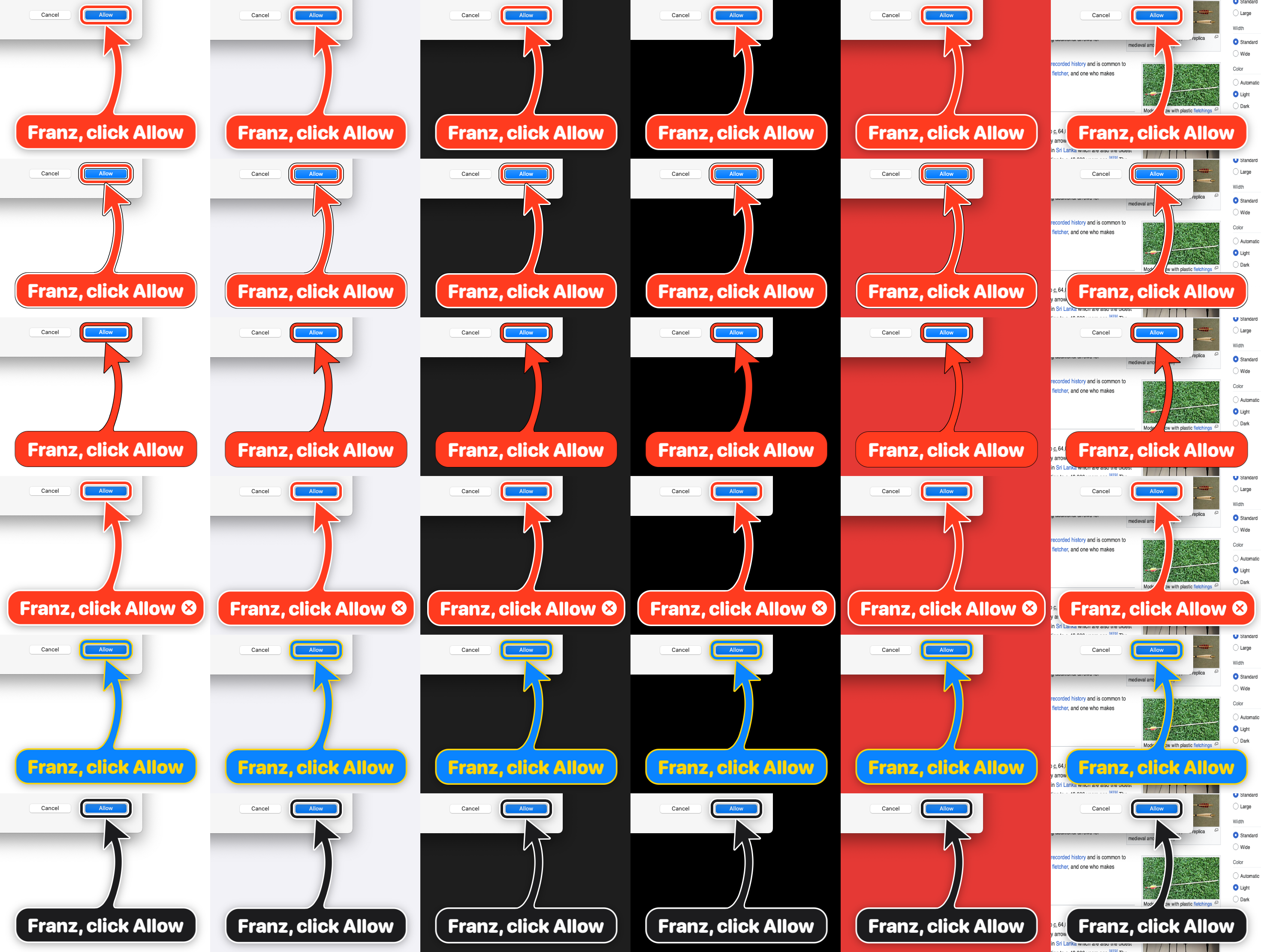
图注:同一组箭头(默认、white-black、黑、关闭按钮、自定义颜色、黑色箭头)在白、灰、深色、黑、红、网页六种背景上的展示效果。
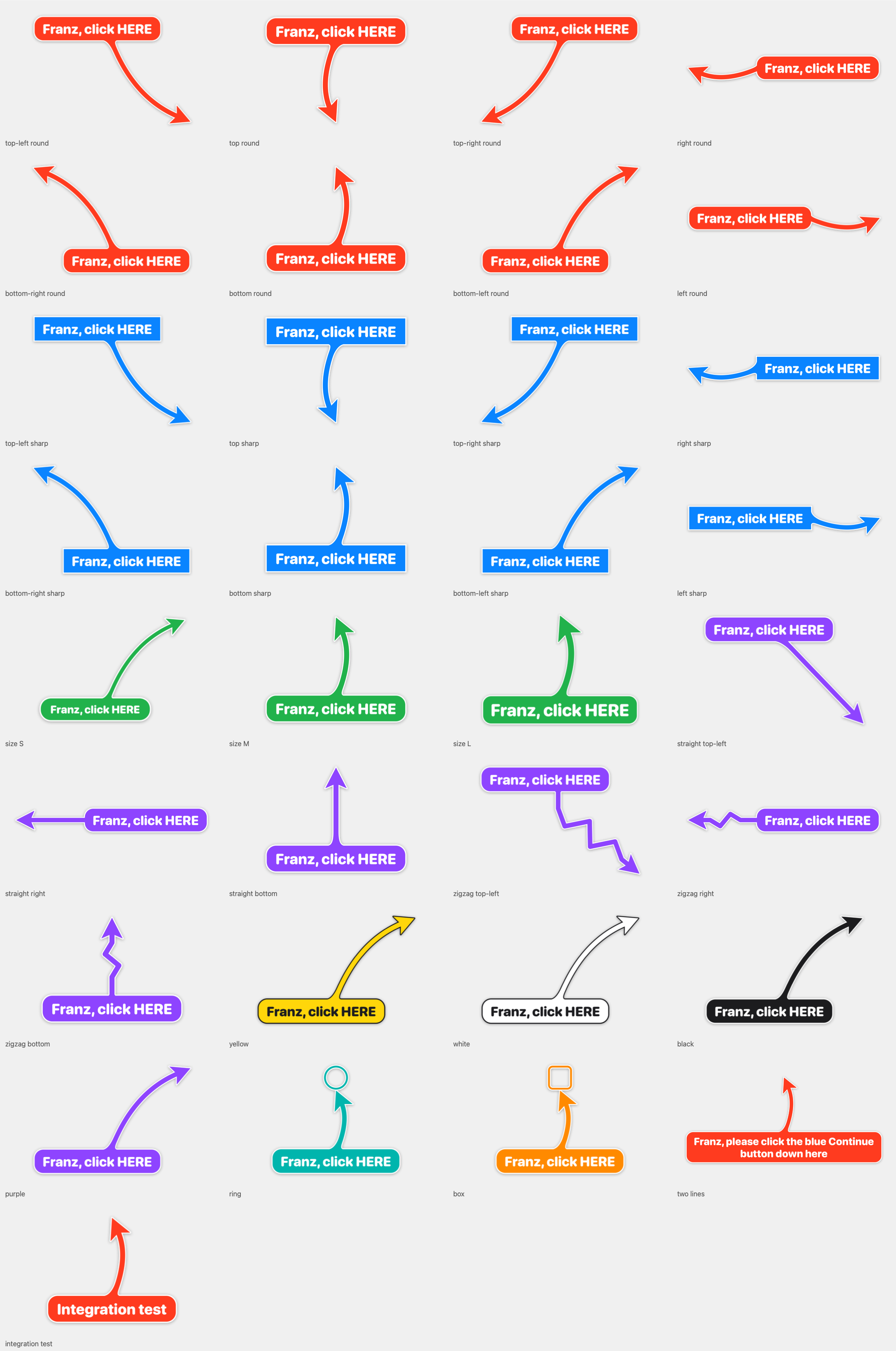
图注:所有样式(arrow/ring/box)、形状(bend/straight/zigzag/spiral)、尺寸(S/M/L)和颜色的完整展示。
--shape bend|straight|zigzag|spiral:锯齿形用于真的很紧急的情况;螺旋形绕着标识牌转一圈,用于绝不可能错过的时候--style arrow|ring|box(环形和方框是描边轮廓,目标保持可见),--size S|M|L,--corners round|sharp--color red|orange|yellow|green|teal|blue|purple|pink|black|white|#RRGGBB--border shadow|white-black|black:默认白边加阴影,也可改为黑色细边代替阴影,或仅保留黑色细描边--border-color、--text-color、--edge-color、--close-color、`--clos
……(正文超出本站单页篇幅上限,此处截断;完整表述请见下方原文入口。)
译文由上游机器翻译生成,可能有误;判断请以英文原文为准。
英文原文(来源本站未改写)
Let your AI agents paint big arrows, boxes and text on your screen
big-arrow-on-the-screen (bigarrow) is a macOS command-line tool, plus a skill for Claude Code and Codex, that draws an arrow and a sign on top of every window. Clicks go through, your keyboard focus stays put, and the arrow removes itself. MIT licensed.
 
Real apps · Copy & paste · What is it for? · Install · Commands · Looks · Creative arrows · Starred by · FAQ · How we know it works · For agents · Plan · Prior art · License
Your AI agent can refactor a monorepo, write a migration and explain monads, but when it needs you to click one button it prints "please click Allow in the dialog" into a terminal you are not looking at. bigarrow gives it a finger.
bigarrow point --element "Allow" --app "System Settings" --text "Franz, click Allow: Ghostty may control your Mac"One transparent window above everything, on every display and every Space. Drawing needs no macOS permission at all. One Swift binary: no daemon, no menu-bar icon, no account, no telemetry, and, we checked twice, no AI inside. It is an arrow.
Real apps, real use cases
Real apps on a real Mac (macOS 27), the real bigarrow, staged by scripts/real-scenes.sh.
macOS Desktop & Dock: stop "click wallpaper to show desktop"
"The most annoying change in Mac update history", fixed in six arrows (MP4).
System Settings: grant a permission
open "x-apple.systempreferences:com.apple.preference.security?Privacy_Accessibility"
bigarrow start --element Terminal_Toggle --app "System Settings" \
  --text "Franz, switch this on: Terminal may control your Mac" --from right --color green --close-button
bigarrow start --element Add --role button --app "System Settings" \
  --text "Not in the list? Plus. Then find it." --from bottom-right --style ring --color orange --shape zigzag --size S
Keynote: a three-step how-to
bigarrow start --element Animate --app Keynote --role radiobutton --text "1. Click Animate" --from right \
  --style ring --color purple
bigarrow start --element "Add an Effect" --app Keynote --text "2. Add an Effect" --from right \
  --style box --corners sharp --color "#FF9F0A" --shape straight
bigarrow start --element Play --app Keynote --role button --text "3. Press play. Bask in the applause." \
  --from top --color teal --shape zigzag --size S
Print dialog: helping Mom save a PDF
bigarrow start --element PDF --role button --app TextEdit \
  --text "Mom, click PDF, then Save as PDF" --from bottom --color pink --border white-black
bigarrow start --element Cancel --role button --app TextEdit \
  --text "Not this one, Mom" --from bottom-right --color black --size S
Chrome: the right tab out of 14
bigarrow start --app "Google Chrome:Sourdough" --element "Sourdough - Wikipedia" --role radiobutton \
  --text "It's this tab, not the other 13" --from top --shape zigzag --color "#5856D6" --size L
--app "App:tab title" raises the window and selects the tab first.
Finder: "no, the other grid icon"
bigarrow start --element "icon view" --role radiobutton --app Finder \
  --text "Not this one" --from top-left --style ring --color black --size S
bigarrow start --element Group --role menubutton --app Finder \
  --text "No, the other grid icon. This one." --from top --style box --color green
A real guide: allow screen recording
The whole guide as a 6-page PDF, every screenshot an arrow an agent drew. Download the PDF or read it here.
Copy & paste
{{value}} in the sign becomes a copy button. Click, paste.
bigarrow start --element "PIN code" --role textfield --app "Google Chrome:Acme sign-in" --from right \
  --color blue --border-color yellow --text-color yellow --text "Franz, copy & paste the PIN {{482913}} here"
What is this actually for?
Fair question. Arrows have existed since roughly the Paleolithic. What changed: agents now do real work on your Mac, and sooner or later hit a step only a human may do, or one the human wants to learn.
- "Click Allow." Permission prompts, OAuth consent, "Open with...?".The agent finds the button but must not, or cannot, press it.It can point.
- "Your turn." 2FA, CAPTCHAs, passkeys, payments, signatures.It points, you decide, it continues.
- "Paste this." A code, a URL, a command: on the sign with a copy button.
- "I need you, and you're making coffee."
--sayreads the sign aloud.Your Mac will literally call you back to your desk. - "Show me how." Ask how to do something in Blender, and the agent points at each control in turn.
A product tour, minus the product.
- Helping someone else. On a parent's Mac or over a screen share, pointing beats "the button at the top, no, the other top".
- Demos and docs. Highlight while recording, or render straight to a PNG with --png.
- Debugging coordinates. Point at your Accessibility or Peekaboo coordinates and look. --dry-run --json says where it would point.
Not a screen annotator, not a click bot, not a screenshot tool. It never clicks, types or captures. It only points. Deliberately.
Install
brew install franzenzenhofer/tap/bigarrow
bigarrow install-skill          # teaches Claude Code (~/.claude/skills) and Codex (~/.agents/skills)
From source: swift build -c release (Xcode 16+, macOS 14+), binary at .build/release/bigarrow. The binary is pure Swift; scripts/ only records screenshots and runs tests.
The three commands an agent needs
bigarrow point --element "Allow" --app "System Settings" --text "Franz, click Allow"   # by label
bigarrow point --at 760,500 --text "Franz, click HERE"                                 # by coordinate
bigarrow start --window "Safari:Inbox" --text "This window" && bigarrow stop            # until stopped
Every arrow ends by itself. Nobody has to clean up after an agent that forgot:
| Time limit | --duration 10 (point 8 s, start 300 s, 0 = no limit) |
| Start and stop | start returns at once; stop (or stop --all) removes it |
| The agent goes away | the arrow ends with the agent process that drew it (CLAUDE_PID or BIGARROW_OWNER_PID) |
| The human answers | bigarrow stop --hook as a Claude Code UserPromptSubmit hook clears that session's arrows |
| The human closes it | --close-button (opt-in) |
Targets: --at X,Y, --rect X,Y,W,H, --mouse, --window App[:title], --element Label --app App, --peekaboo ID --snapshot see.json. Coordinates are global top-left logical points, as Accessibility and Peekaboo report them; --display N makes them relative to one display.
--app App[:window or tab title] (or --window) first brings that app, window or Chrome/Safari tab to the front, because pointing at a window hidden behind your terminal is a special kind of unhelpful. If another app covers the target later, the arrow hides until it is visible again. --no-raise opts out. bigarrow elements --app X lists what --element can match; bigarrow doctor shows permissions and displays.
Every command takes --json. Exit codes: 0 ok, 2 bad input, 3 target not found, 4 permission missing. Agents love exit codes. Humans tolerate them.
Looks
It is an arrow, so we spent an unreasonable amount of time on how it looks.
Six looks over white, macOS grey, dark, black, red and a busy web page:
--shape bend|straight|zigzag|spiral: zigzag for when it is really urgent; spiral loops once around the sign, for when it must be impossible to miss--style arrow|ring|box(rings and boxes are outlines, the target stays visible),--size S|M|L,--corners round|sharp--color red|orange|yellow|green|teal|blue|purple|pink|black|white|#RRGGBB--border shadow|white-black|black: white border with drop shadow (default), a thin black edge instead of the shadow, or just a thin black outline--border-color,--text-color,--edge-color,--close-color, `--clos
... (truncated at the site's per-page length limit; see the source link below for the full text.)
出处https://github.com/franzenzenhofer/big-arrow-on-the-screen
这条还缺什么证据?
下面每条都由本条已有字段推出(等级、理由、商业模式、来源次数、是否演示), 本站不生成推测性结论;通用验证方法放在方法论页。
- 可核验的收入或付费证据查官网定价页与付费口径;第三方数据源(如 GetLatka)只作旁证,需标注来源与时点。
- 商业模式未定确认按席位/按用量/授权还是开源托管版收费;开源项目另查 LICENSE 与是否存在付费版。
- 只有单一来源找一手站点或其他渠道是否重复出现同一产品;社区热帖数量不等于商业进展。
通用验证清单(谁有这个问题/谁愿意付费/一个人能交付哪一小步)见我们的筛选方法。